> For the complete documentation index, see [llms.txt](https://docs.opsnow.io/dev-opsnow-user-guide-v0.2/llms.txt). Markdown versions of documentation pages are available by appending `.md` to page URLs; this page is available as [Markdown](https://docs.opsnow.io/dev-opsnow-user-guide-v0.2/menu/finops-kpis/settings-tab/goal-settings.md).
# Goal Settings
In this step, you can review all available metrics comprehensively, select the most relevant KPIs, and set specific performance goals for each selected KPI.
1. **Search Bar:** Quickly find specific KPIs by name within the KPI library. Enter the KPI name in the search field.
2. **Confirmed/Unconfirmed:** Unconfirmed KPIs are in the default state. By clicking on a KPI item card to view its details, setting a target value, and saving it, the KPI will switch to a Confirmed state.
3. **Edit Icon:** Clicking the pencil icon opens a wing popup with the detailed settings for the KPI. Here, you can review the KPI's properties and define precise performance goals.
## **KPI Information**
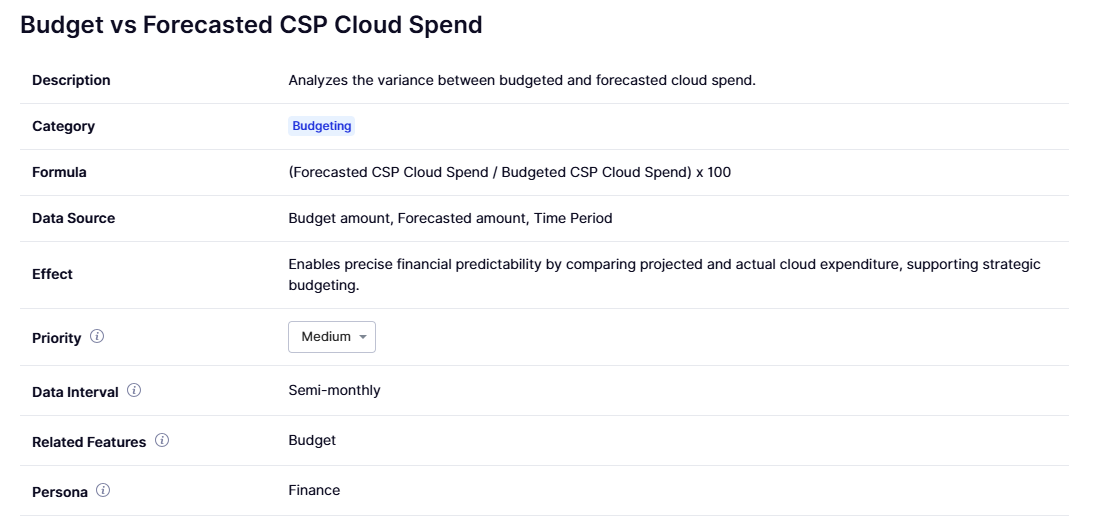
In the top section, detailed attribute information for the selected KPI is provided in a read-only format. You can adjust the Priority based on your business context.
1. **Description:** A brief explanation of what this metric measures.
2. **Category:** The FinOps domain to which this KPI belongs (e.g., Rate Optimization, Workload Optimization, etc.).
3. **Formula:** The mathematical formula used to calculate the KPI value.
4. **Data Source:** The origin of the data used for KPI calculation (e.g., CSP billing data, etc.).
5. **Effect:** The business or operational impact of performance on this metric improves.
6. **Priority:** Set the importance level of the KPI (High, Medium, Low) to use for filtering and reporting purposes.
7. **Data Interval:** The frequency at which KPI data is calculated and updated.
8. **Related Features:** Displays which features in the OpsNow menu are related to this KPI.
Persona: Suggests the most suitable role or user type to take responsibility for the KPI, helping to establish clear accountability.
## **KPI Goal Setting**
\
The bottom section is where you define the performance targets for this KPI.
In the bottom section, you can directly set the performance goal for the selected KPI.
1. **AI Advice:** Automatically suggests a realistic starting goal based on performance data from the past 3 months. Available only to existing OpsNow users. New users may not receive a suggested value due to a lack of historical usage data.
2. **How to Set the Goal:**
* Click on a KPI item, then navigate to the **\[Goal Setting]** tab. Click the KPI item again to open the detailed settings screen.
* Enter the desired numeric goal in the ‘Target Value’ input field. Enter the acceptable deviation (%) in the ‘Tolerance’ field.
* Based on the values entered, the system will automatically calculate and display the ‘Acceptable Range’. This range defines the threshold at which the KPI is considered a "Pass."
* After reviewing all settings, click the **\[Confirm]** button to apply the goal settings to the selected KPI.
During the initial setup, click the **\[Next]** button to save the current KPI target settings and proceed to the “Templates” step.