> For the complete documentation index, see [llms.txt](https://docs.opsnow.io/dev-opsnow-user-guide-v0.2/llms.txt). Markdown versions of documentation pages are available by appending `.md` to page URLs; this page is available as [Markdown](https://docs.opsnow.io/dev-opsnow-user-guide-v0.2/menu/opsnow-insight/mcp-settings.md).
# MCP Settings
This guide explains the installation and configuration steps required to use OpsNow FinOps MCP. OpsNow FinOps MCP enables AI to directly analyze your cloud environment data, delivering more accurate and in-depth FinOps insights.
1. Install Claude Desktop and launch it after installation.\
\- [Claude Desktop](https://www.claude.com/download)
2. Download the latest LTS version from the official Node.js website.\
\- [Node.js](https://nodejs.org/en/download)
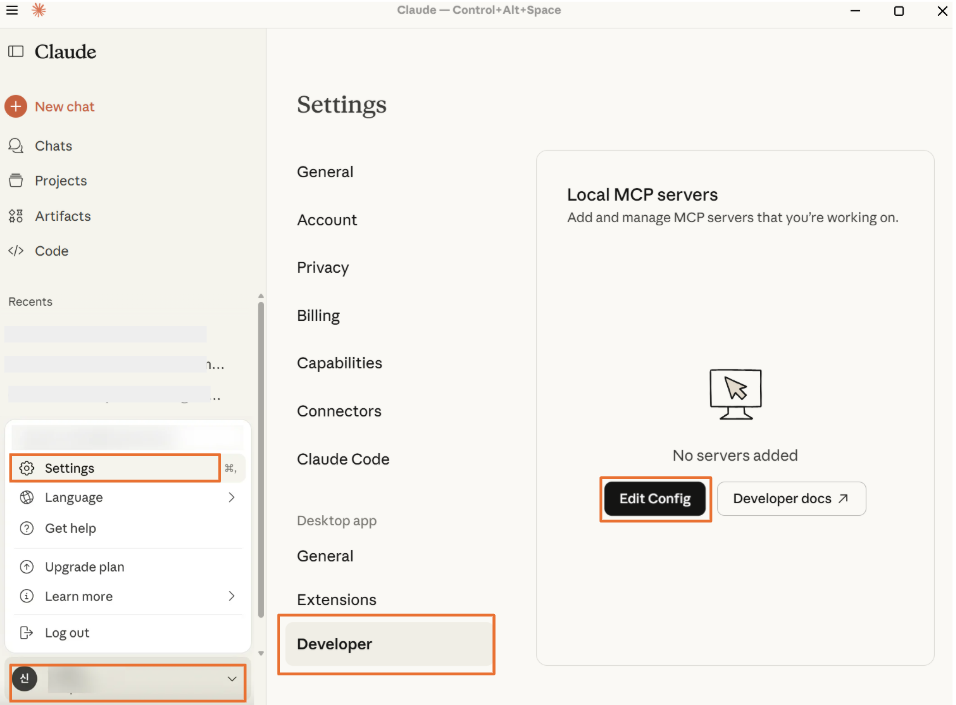
3. After launching Claude Desktop, click \[Settings] from the left menu. Select the \[Developer] tab and click the **\[Edit Config]** button.
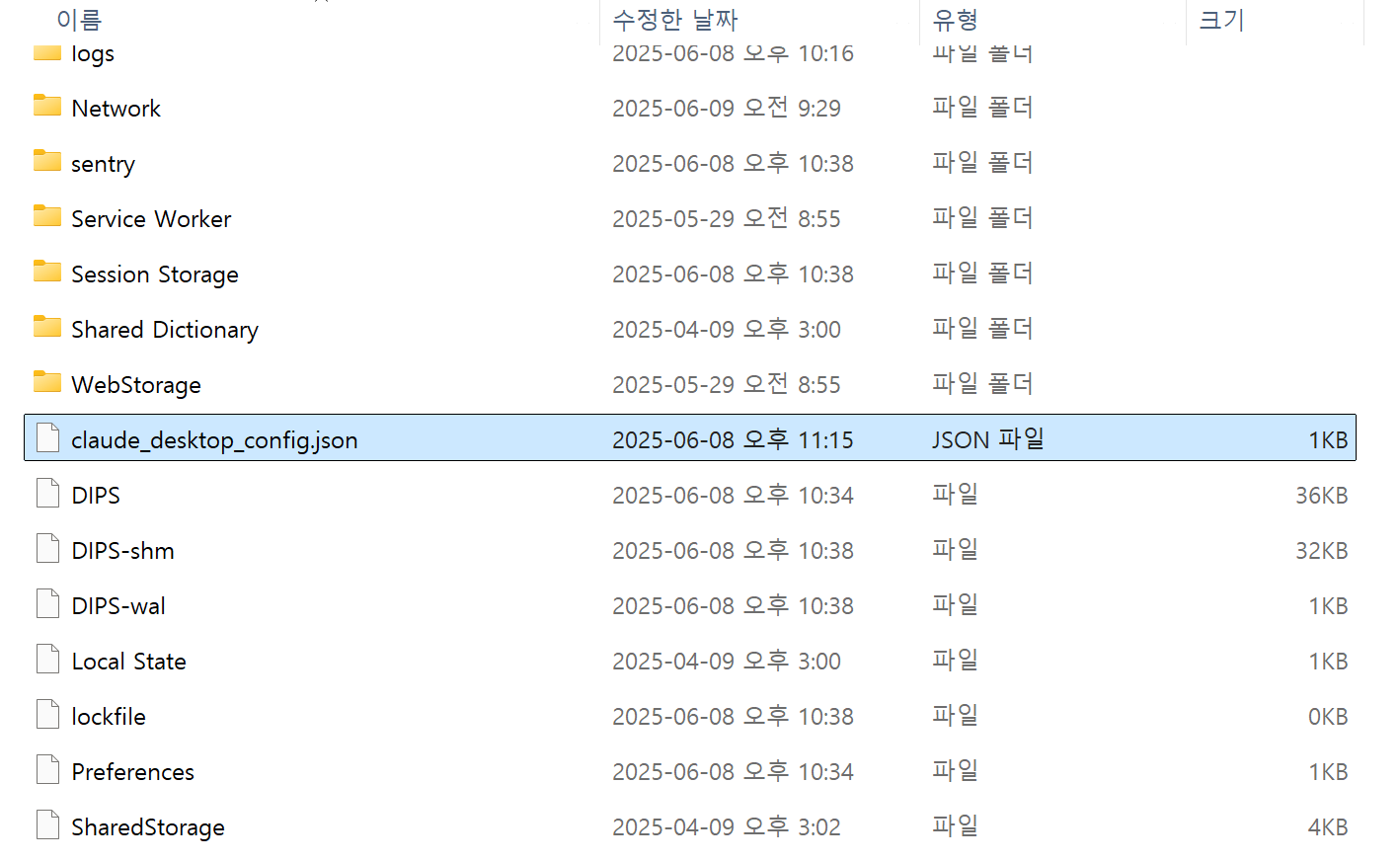
4. Open the **claude\_desktop\_config.json** file and add the following configuration details using a text editor.
**\*Note: Please refer to the configuration details below.**
The configuration below applies to all regions **except MEA**.
```
{
"mcpServers": {
"opsnow-mcp-finops-server": {
"command": "npx",
"args": [
"-y",
"@opsnow-mcp/opsnow-mcp-finops-server",
"--license-key",
"YOUR_LICENSE_KEY"
]
}
}
}
```
For the **MEA region**, use the configuration shown below.
```
{
"mcpServers": {
"opsnow-finops-mcp-server": {
"command": "npx",
"args": [
"-y",
"@opsnow-mcp/opsnow-mcp-finops-server",
"--license-key",
"YOUR_LICENSE_KEY"
"--region",
"uae"
]
}
}
}
```
* If you are using a Zscaler environment, insert the “ZscalerRootCA certificate file\*”.
***\****ZscalerRootCA certificate file: *End users should obtain the root CA certificate from their administrator. Administrators should provide users with the applicable root CA certificate (e.g., Zscaler root CA certificate or custom root CA certificate).*
```
{
"mcpServers": {
"opsnow-mcp-finops-server": {
"command": "npx",
"args": [
"@opsnow-mcp/opsnow-mcp-finops-server",
"--license-key",
"YOUR_LICENSE_KEY"
],
"env": {
"NODE_EXTRA_CA_CERTS": "C:\\ZscalerRootCA.pem"
}
}
}
}
```
* If you are using an nvm environment with multiple Node versions, you need to explicitly specify the Node version.
```
{
"mcpServers": {
"opsnow-mcp-finops-server": {
"command": "npx",
"args": [
"@opsnow-mcp/opsnow-mcp-finops-server",
"--license-key",
"YOUR_LICENSE_KEY"
],
"env": {
"PATH": "/Users/xxx/.nvm/versions/node/v22.14.0/bin:/usr/local/bin:/usr/bin:/bin",
"NODE_PATH": "/Users/xxx/.nvm/versions/node/v22.14.0/lib/node_modules"
}
}
}
}
```
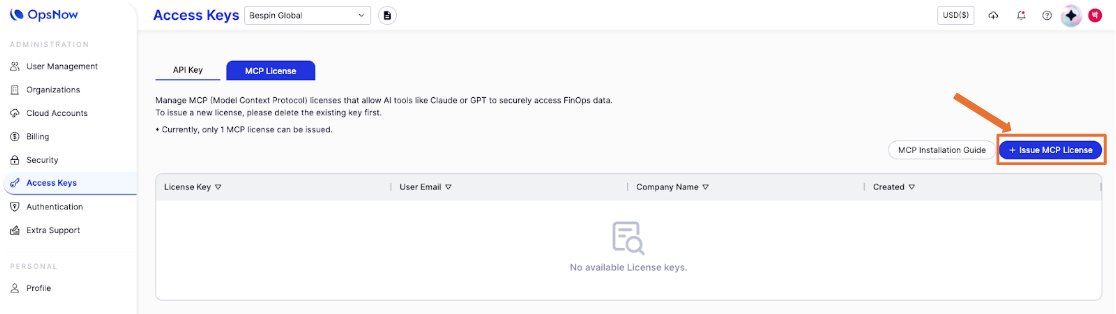
5. In the OpsNow Plus user management page (), click **'Access Keys'** on the left menu, then click **\[+ Issue MCP License]** to generate your license key.
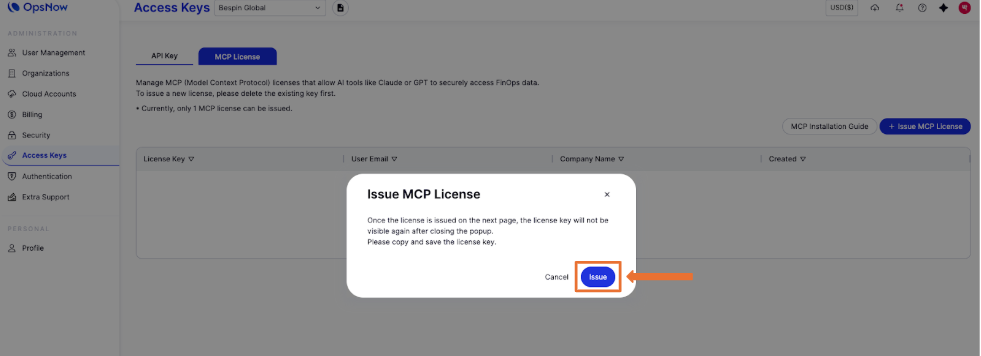
6. Click **\[Issue]** to generate the MCP license key.
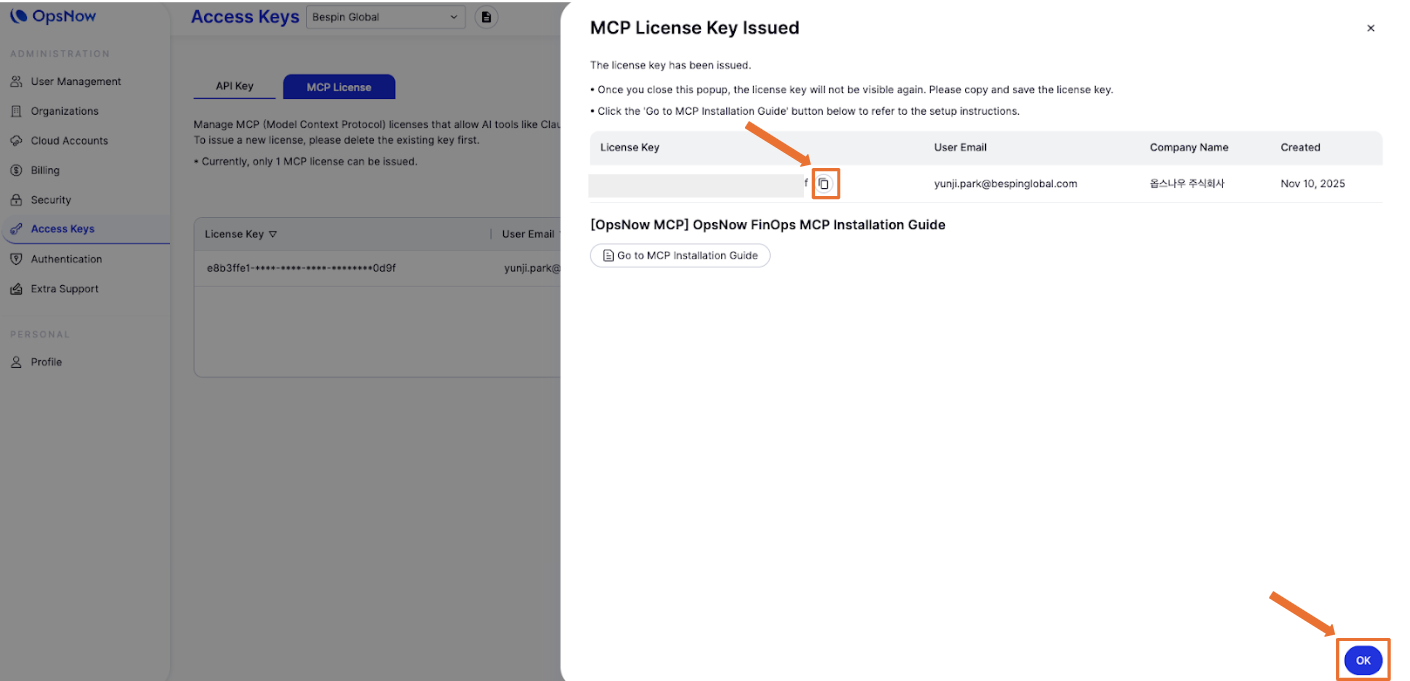
7. Once the MCP license key is generated, click the **\[Copy]** icon and then click **\[Ok]**.
*\*Please copy and save the license key. Once you close this popup, the license key will not be displayed again.*
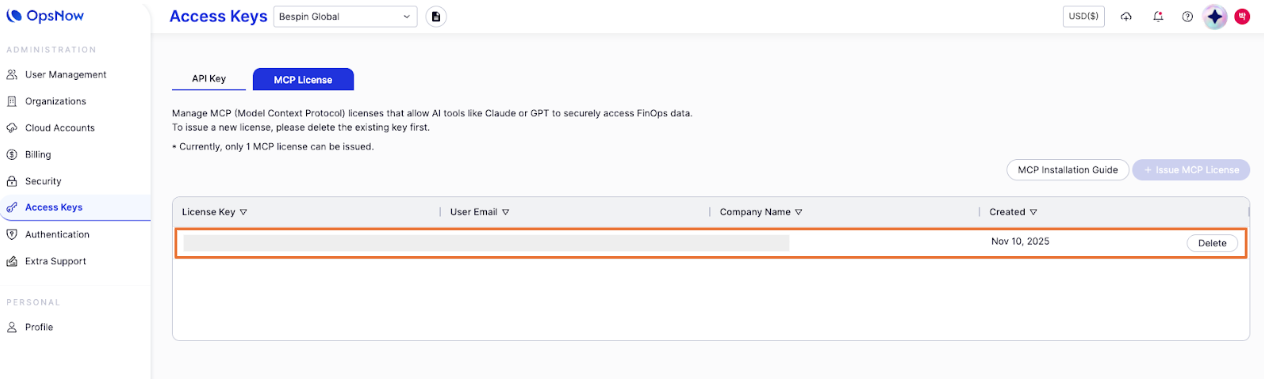
8. The MCP license will be successfully added, as shown in the table below.
9. Go back to **‘Settings’** in step 4 and replace **YOUR\_LICENSE\_KEY** with the license key you copied.
10. Completely close and restart the Claude Desktop app.
11. Once OpsNow FinOps MCP is successfully installed, you can start with questions like the examples below.\
Recommended Queries:
* “Review all cloud resources I’m currently using.”
* “Compare my cloud usage between last month and this month.”
* “Which AWS EC2 region has the highest cost increase?”
* “Analyze the savings effect of Azure Reserved Instances.”