> For the complete documentation index, see [llms.txt](https://docs.opsnow.io/dev-opsnow-user-guide-v0.2/llms.txt). Markdown versions of documentation pages are available by appending `.md` to page URLs; this page is available as [Markdown](https://docs.opsnow.io/dev-opsnow-user-guide-v0.2/setting/user-management/roles-tab.md).
# Roles Tab
In **Roles**, you can view and create both **System Roles**, which are provided directly by OpsNow, and **Custom Roles**, which can be created by users with **Owner** permissions.
{% hint style="info" %}
The **Roles Tab** is only visible to users with **Owner** permissions.
{% endhint %}
{% hint style="warning" %}
Currently, role permissions are limited to the **Settings** menu. However, OpsNow is actively working on expanding role-based access controls to include menu permissions and more granular controls in the near future. Stay tuned!
{% endhint %}
#### Features available in the Roles menu:
* **Add Role**: Allows you to create a new **Custom Role**.
* **Delete Role**: Allows you to delete an existing **Custom Role**.
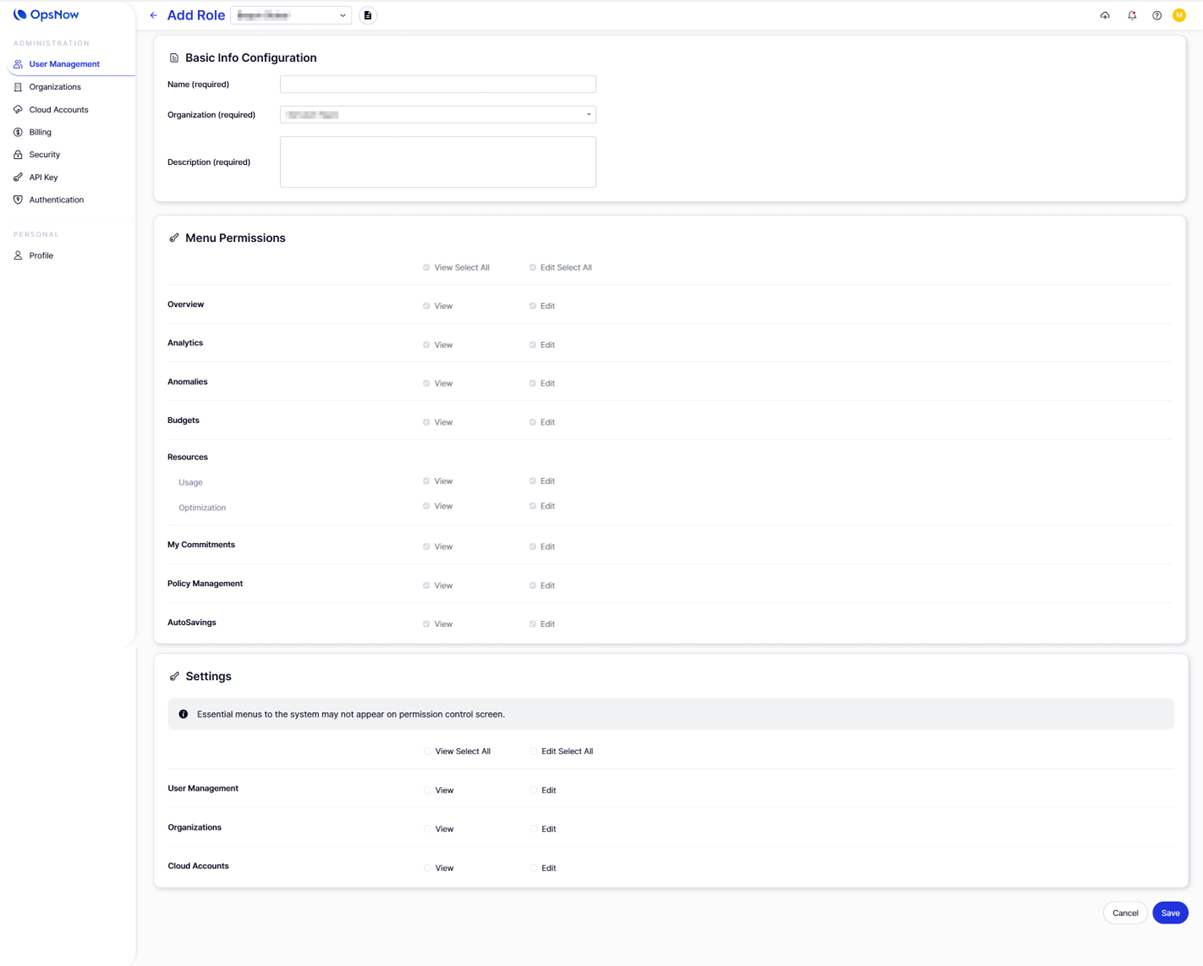
After clicking **Add Role**, you will be directed to the **Add Role** configuration page. Here, you can create a custom role by defining its basic information and selecting detailed permissions.
#### **1. Basic Info Configuration**
In this section, enter the key information required to create the role:
* **Name:** Enter the name of the new role.
* **Organization: S**elect the organization where this role will be applied.
* **Description:** Provide a description that explains the purpose or scope of the role.
#### **2. Menu Permissions**
This section allows you to define what the role can *view* or *edit* across OpsNow menus.\
Each menu item includes two permission types:
* **View:** Grants read-only access.
* **Edit:** Grants full access, including management or configuration rights.
#### **3. Settings**
Some system-essential menus may not appear in the permission list.\
Additional configuration options are available.
#### **4. Save the Role**
Once all information and permissions are configured:
* Click **Save** to create the role.
* Click **Cancel** if you do not wish to proceed.